
Welcome to our information page on using high-performance computers! Here you will find information on various topics in the world of high-performance computing.
Please note: This page collects links and information on specific topics. If you have individual questions or need more basic information, please visit our Trainings or use our contact form.
HPC access
HPC resources – typically specified in core hours – are available not only for science, but also for SMEs, industry and the public sector. Scientists have the opportunity to apply for HPC resources from public funding. Explanations of this are linked in this category. We are happy to advise users outside the scientific sector on access options – simply contact us using the contact form.
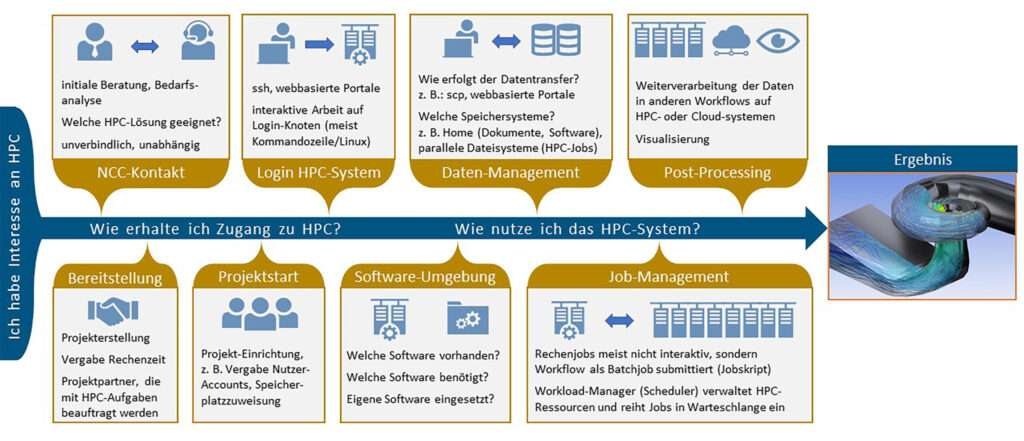
Once the HPC resources have been granted, the systems can be used. Depending on requirements and experience, this is done either classically via the command line using a secure connection via Secure Shell (ssh) or interactively, for example securely via JupyterLab. Login typically takes place via a front end, from which so-called jobs are sent, in which the user-defined work orders are processed with the requested resources (computing nodes/cores, duration). Both the jobs and the entire project can be monitored continuously (job monitoring, user portal). Explanations and examples of technical HPC access are listed below.
| JSC | LRZ | HLRS |
| Requirements: (computing time project, JUDOOR account), instructions for SSH login, GUI via X-Forwarding, Putty, VNC: JUWELS, JURECA or via JupyterLabslides and Video) Job monitoring and user portal Example of use: Deep Learning on Supercomputers – An Introduction (MNIST Tutorial with Keras/Tensorflow, adaptation for distributed training (Horovod), (GIT repo) | Project: At LRZ, projects can only be submitted by academic institutions, but with industry participation (project partners). Project application: Supercomputers Linux Cluster What happens after approval? Guide to project approval (GCS) Guide to project approval (PRACE) | Hunter Platform: Hunter access HPC access: SSH login via classic console with fixed IP address, alternatively VPN Two-factor authentication required Vulcan Platform: NEC Cluster access (vulcan) – HLRS Platforms HPC access: SSH login via classic console with fixed IP address |
| SSH: SSH at LRZ HPC systems SSH Tutorial + Video Overview and status of HPC systems User portal Graphically displayed HPC job monitoring: Portal, documentation | ||
| Working environments: Compute Cloud: Access information, presentation overview Jupyter in the cloud VNC: Use of a server-side preconfigured remote desktop on dedicated nodes of the Linux cluster or supercomputer |
Software
Without software, there would be no high-performance computing, AI or cloud computing! Modern HPC systems differ significantly from consumer computers in terms of their architecture (e.g. type and number of processing cores, size of RAM), storage media and, above all, their usually complex network topology. For this reason, operating systems adapted to HPC systems are used. Based on these, users are provided with a broad software portfolio. This includes basic software tailored to the HPC system, such as compilers or communication libraries for parallel computing, as well as HPC applications such as simulation software and scientific libraries. The software offering is usually available to users via a module system. Software components in the desired versions can be compiled and used in computing jobs.
In addition to open source packages and community applications, the offering also includes commercial software. Furthermore, users are free to install software packages or self-developed programmes in their private directory. On request, software can also be added to the portfolio, and support can be provided for installation and configuration on the HPC system.
Explanations and examples of software are listed below.
| JSC | LRZ | HLRS |
| Provided libraries and application software | Provided software environment: Modular system and Spack: documentation, presentation overview | Application software packages – HLRS Platforms |
| Interactive HPC/development environment JupyterLab (overview) | Spack in user space for users to install their own software | |
| Jupyter on HPC systems | ||
| Software with remote access functionality, e.g.: Visual Studio Code, Matlab |
Data management
HPC projects typically generate large amounts of data. Storage systems with the right features ensure optimal performance when handling this data. For example, parallel file systems enable fast, parallel reading and writing of data during an HPC job, which can then be moved to long-term archives for permanent backup. Explanations of the various storage systems and their use, as well as the possibilities for data transfer between different file systems, are linked in this category.
| JSC | LRZ | HLRS |
| Use and properties of the available file systems (Home, Project, Scratch, (Fast)data, Archive): JUWELS, JURECAdata transfer with scp, rsync, etc., as well as use of GIT (JUWELS, JURECA) Juelich Storage Cluster (‘tiered’ storage infrastructure): Video, slides | Features and use of file systems: Supercomputers, Linux Cluster Data Science Storage Data Science Archive | NEC–> NEC Cluster Disk Storage (vulcan) – HLRS Platforms WorkSpace –> Workspace mechanism – HLRS Platforms High Performance Storage System (HPSS) – HLRS Platforms |
| Data transfer between centres or user workstations and centres via Globus Online or scp | Overview and use |
Visualisation & post-processing
We support engineers, scientists, industrial users and the public sector in the visual analysis of data typically generated by simulations on high-performance computers.
Various visualisation methods and technologies from our portfolio can be used for this purpose. To visualise results, separate access to dedicated visualisation nodes is required.
Access is via Remote Desktop (via a web browser) or client server (software required). Another option is to use VNC Viewer (software required) or JupyterLab (web browser). Further information and documentation can be found here.
| JSC | LRZ | HLRS |
| JUWELS JURECA | Remote Visualisation 2021 as a web-based front end, working on a remote desktop: Portal, documentation | VNC access: Graphic Environment |
| in computing jobs (batch mode) or for interactive work on computing nodes (client-server mode) in Rechenjobs (batch-Modus) oder zur interaktiven Arbeit auf Rechenknoten (Client-Server-Modus) | ParaView -> Login via client: Hunter PrePostProcessing | |
| VisIt | COVISE Online Documentation (hlrs.de) COVISE tutorial.pdf (hlrs.de) |